
Build your first automation
Create a visual workflow: a trigger, a wait, a condition, and an email.
An automation is a visual workflow: a starting trigger, then steps that run in order — including waits and if/then branches. This guide builds a simple one so you learn the canvas.
Step 1 — Create the automation
- Click Automations in the left menu.
- Click New automation.
You land on the Builder canvas. It starts with a single When node (the trigger), and a + button beneath each node to insert the next step. The panel on the right edits whatever node you select.
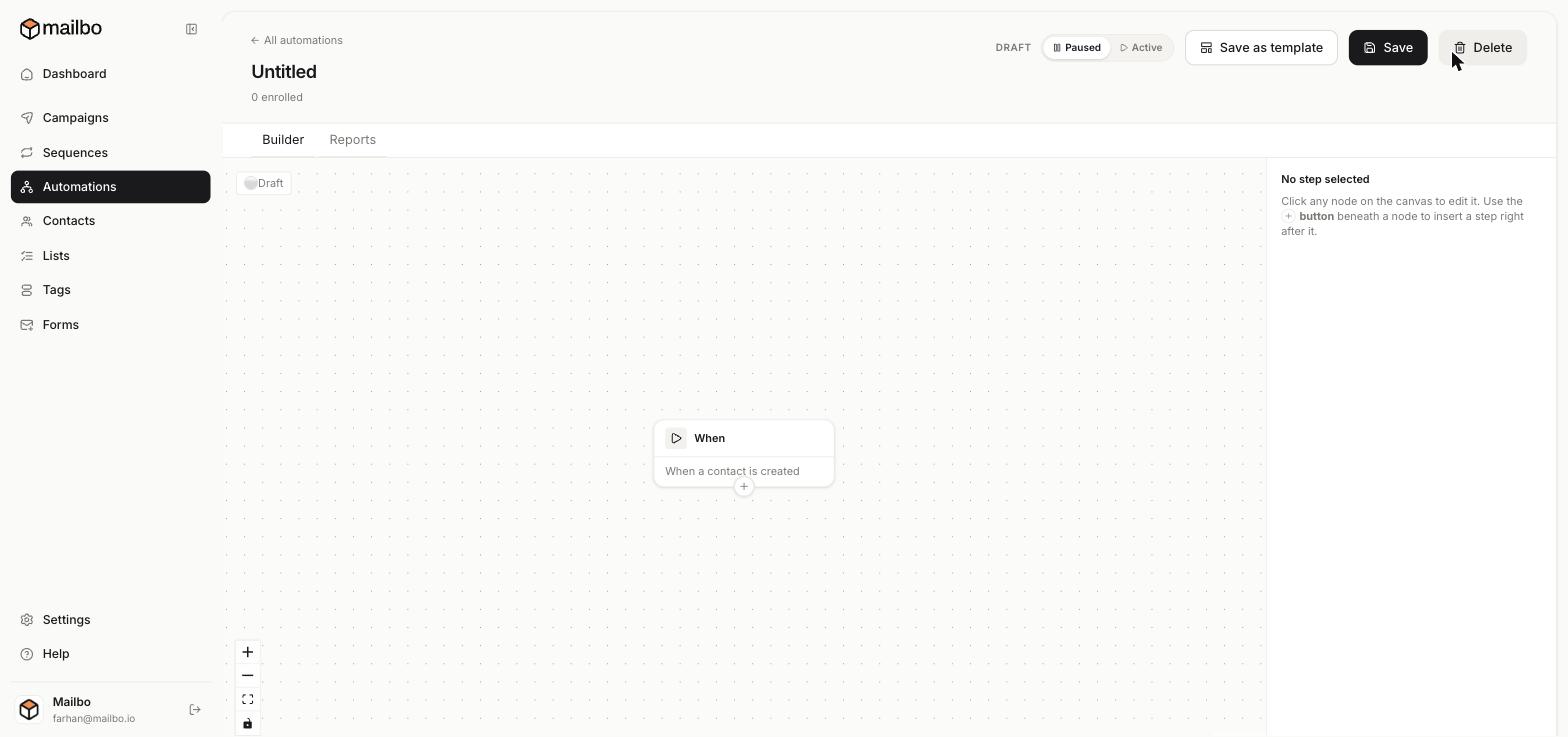
Step 2 — Set the trigger (the "When")
Click the When node to choose what starts the workflow — for example "When a contact is created", when a tag is added, or when they join a list. This is who enters the automation.
Step 3 — Add steps with the "+" button
Click the + beneath a node to insert a step. Your options include:
- Send email — send an email at this point.
- Wait — pause for a set time before the next step.
- Add tag / Remove tag — label the contact (great for tracking where they are).
- If has tag — branch: contacts split into a "yes" path and a "no" path based on whether they have a tag.
- If on list — branch based on list membership.
- Advanced filter — branch on more detailed conditions.
Step 4 — Example workflow
A simple "new contact" automation:
- When a contact is created
- Send email — a welcome
- Wait 2 days
- If has tag
customer? → yes: send a tips email · no: send a "get started" nudge
Each branch can have its own steps, so different people get a different experience.
Step 5 — Save and activate
Use Save as you build. A new automation is a Draft / Paused — flip the toggle to Active when you're ready for it to run on real contacts. You can also Save as template to reuse the structure later.
Test it on yourself first: trigger it with a test contact and confirm each step behaves as expected before going live.