
Import contacts from a CSV file
Bring in an existing list from a spreadsheet, with column mapping.
If you already have a list of subscribers in a spreadsheet, you can bring them all into Mailbo at once with a CSV import. Mailbo de-duplicates by email automatically, so re-importing won't create copies.
Before you start: prepare your file
- Open your spreadsheet (Excel, Google Sheets, etc.).
- Make sure the first row is column headers — e.g.
email,first_name,last_name,company. - Every contact needs an email in one of the columns.
- Export / save as CSV (in Google Sheets: File → Download → Comma-separated values).
Limit: up to 50,000 rows per import. If your file is bigger, split it into several files and import them one after another.
Step 1 — Open the importer
- Click Contacts in the left menu.
- Click Import (or go to Contacts → Import).
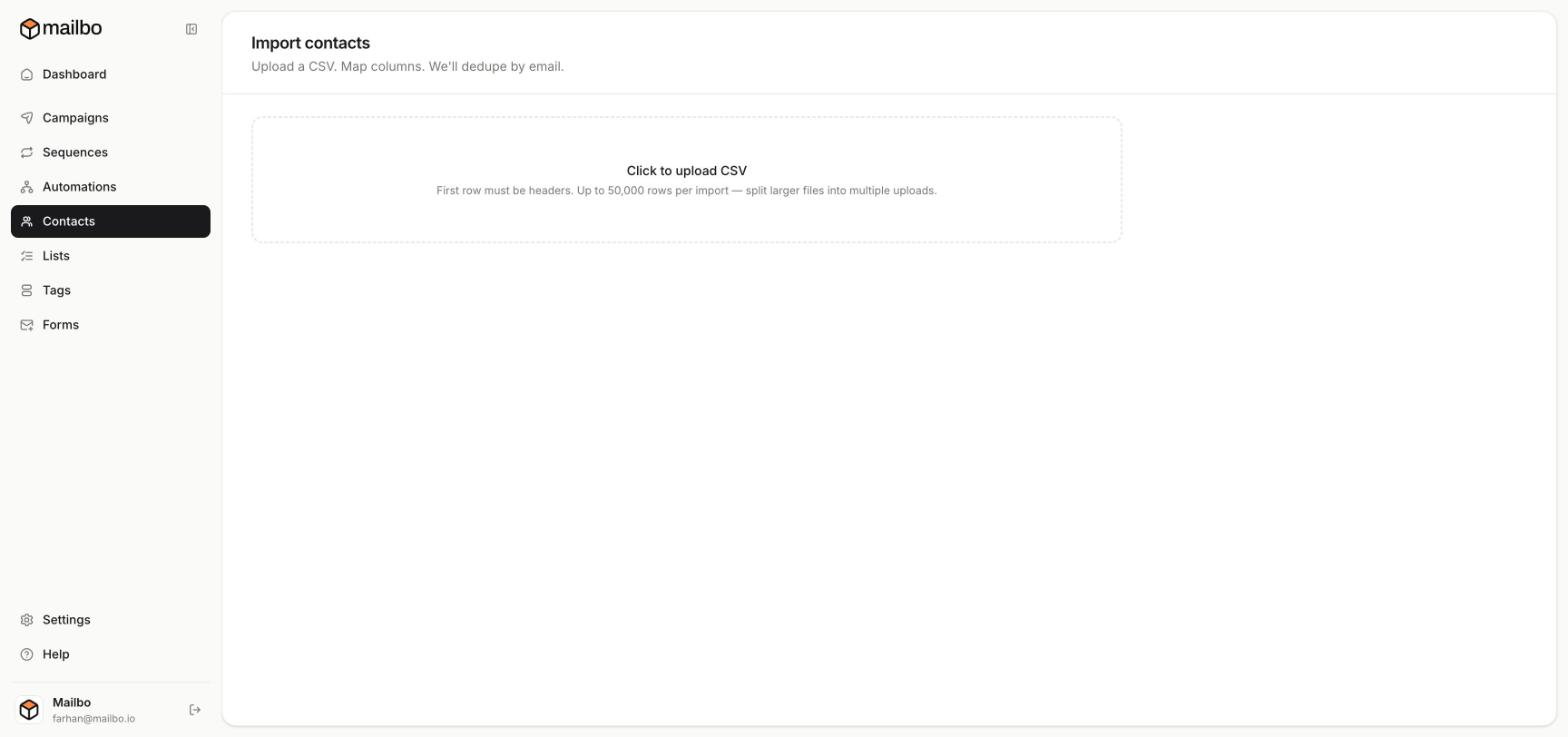
- Click the Click to upload CSV box and choose your file.
Step 2 — Map your columns
After uploading, Mailbo shows your columns next to its own fields. For each column, tell Mailbo what it is:
- Point your email column at Email (required).
- Point name columns at First name / Last name.
- Map any other columns to a custom field, or leave them unmapped to ignore them.
Step 3 — Tag or list the import (recommended)
Assign a tag or add everyone to a list during import — e.g. tag them imported-jan-2026. This makes it easy to find or email exactly this batch later.
Step 4 — Import
Confirm and start the import. Mailbo adds new contacts and updates existing ones (matched by email) — no duplicates.
Good to know
- Imported contacts are added as Subscribed and skip double opt-in (you're vouching that they agreed to hear from you).
- Only import people who actually opted in. Importing bought or scraped lists will wreck your deliverability and may get your account suspended.
Next: Tags vs Lists · Segment your audience