
Set up an inbound webhook
Let other apps (Stripe, Lemon Squeezy, your backend) push events into Mailbo.
An inbound webhook lets another app send data into Mailbo automatically — most commonly purchase events from a checkout like Stripe or Lemon Squeezy, so a sale can tag a contact, start a sequence, and so on. No Zapier required.
Step 1 — Create the webhook
- Go to Settings → Inbound webhooks.
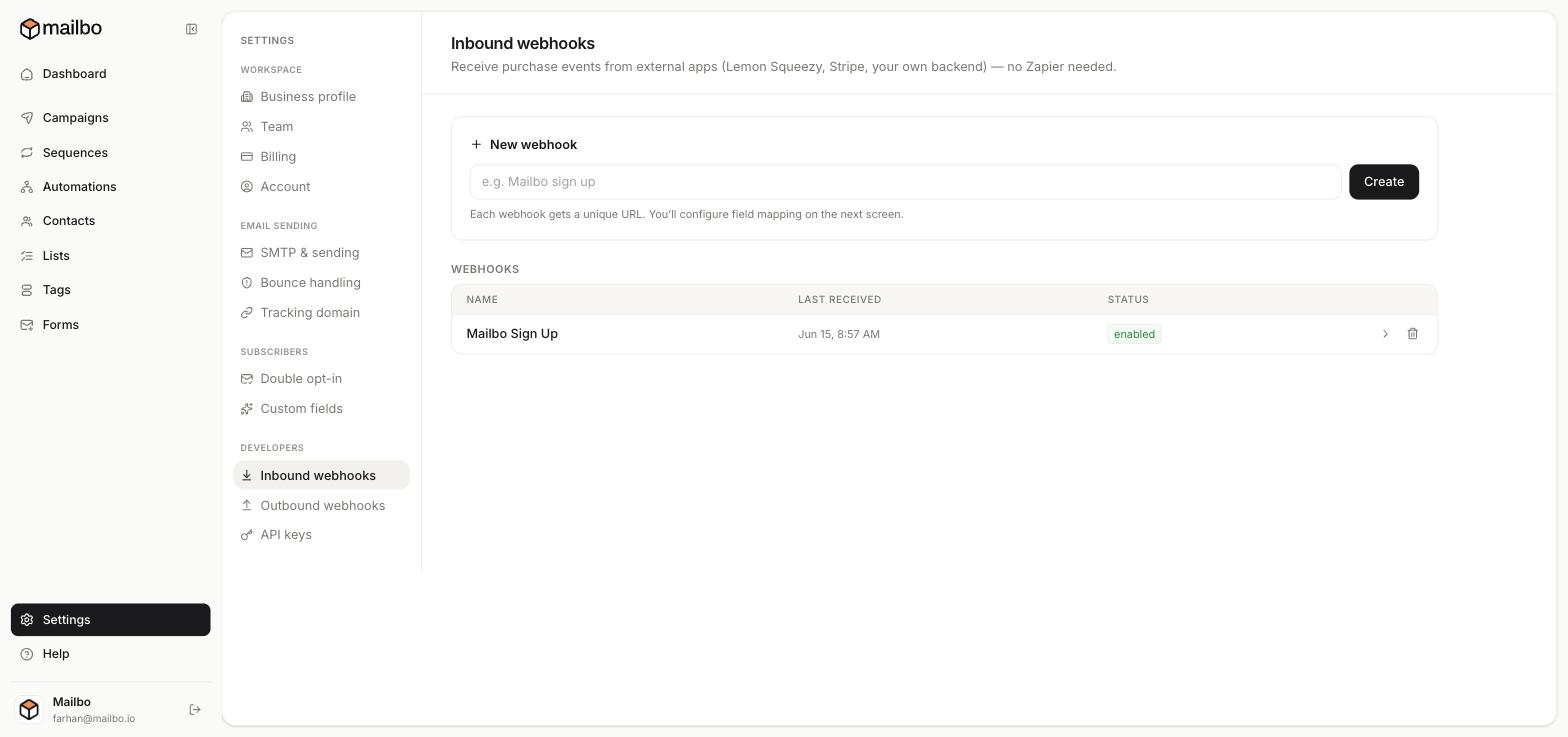
- In New webhook, type a name (e.g. "Stripe purchases") and click Create.
- Mailbo generates a unique URL for this webhook. You'll configure field mapping on the next screen.
Step 2 — Map the fields
Tell Mailbo where to find the important bits in the incoming data — at minimum the email (so it knows which contact), plus any amounts, product names, or custom fields you want to store. Mapping connects the sender's data shape to Mailbo's fields.
Step 3 — Point the other app at the URL
In the app sending the data (Stripe, Lemon Squeezy, your own backend), add a webhook/notification pointing to the unique URL Mailbo gave you. Now, whenever that event happens, the app posts to Mailbo and your contact is created or updated automatically.
Step 4 — Test it
Trigger a test event from the sending app (most have a "send test" button). Back in Mailbo, the webhook's Last received time updates and its status shows enabled when it's working.
What you can do with it
Combine inbound webhooks with automations and tags: e.g. a purchase webhook tags the buyer customer, which triggers an automation that thanks them and starts an onboarding sequence.