
Create a signup form
Build a form that collects new subscribers, step by step.
A signup form lets people add themselves to your list. You design it in Mailbo, then either share its link or embed it on your website. New submissions become contacts automatically.
Step 1 — Create the form
- Click Forms in the left menu.
- Click New form (top-right).
- Give it an internal name (e.g. "Newsletter signup") — subscribers never see this; it's just how you'll find it later. Click Continue.
You land in the form editor, which has three tabs: Editor, Embed, and Stats.
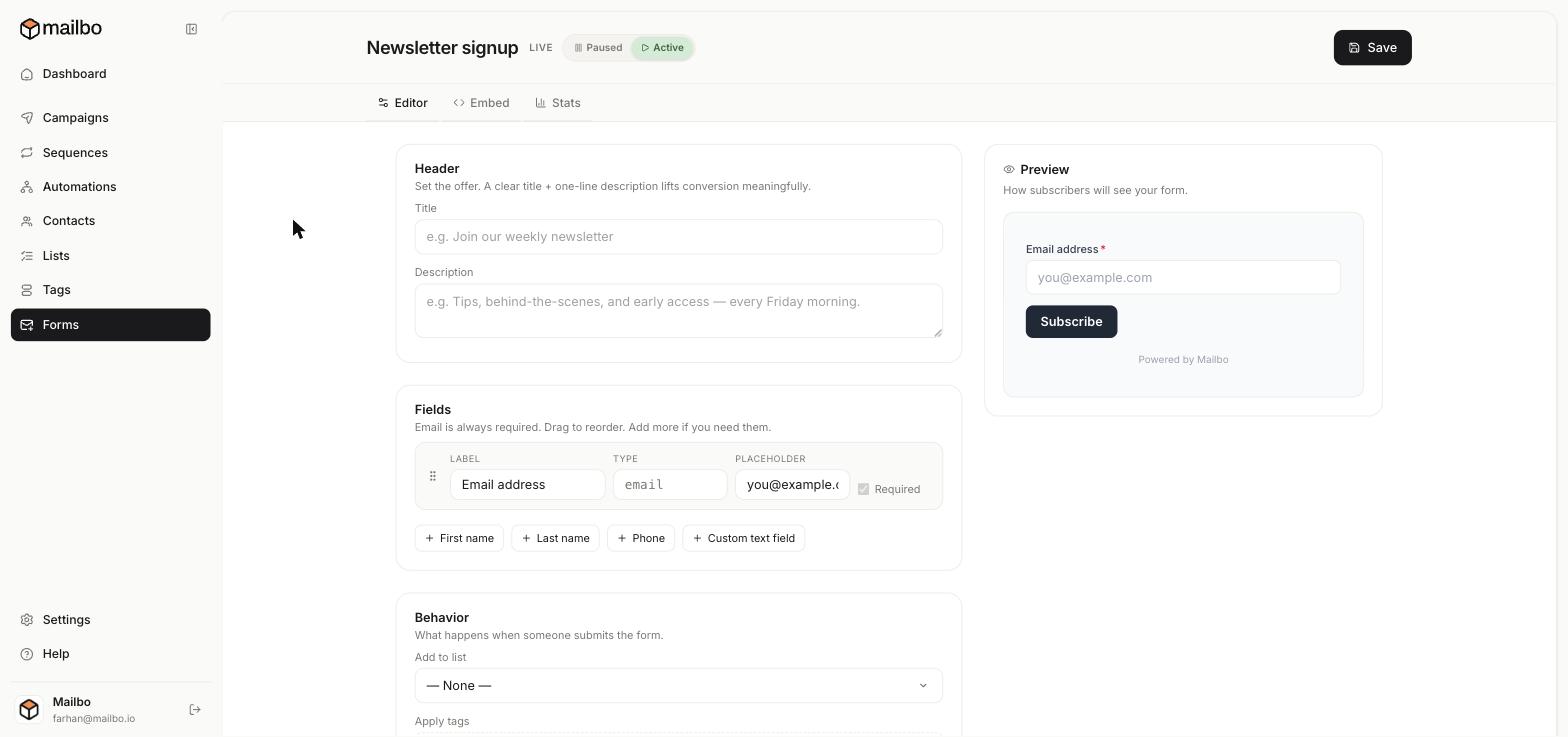
Step 2 — Write the header
Under Header:
- Title — the headline people see, e.g. "Join our weekly newsletter."
- Description — one line on what they'll get and how often, e.g. "Tips and early access — every Friday." A clear offer meaningfully lifts signups.
The Preview panel on the right shows exactly what subscribers will see as you type.
Step 3 — Choose your fields
Email is always included and required. To collect more, click the add buttons:
- First name, Last name, Phone, or a Custom text field.
Drag fields to reorder them. Keep it short — every extra field lowers your signup rate.
Step 4 — Set the behaviour
Under Behavior, decide what happens when someone submits:
- Add to list — drop new signups onto a list.
- Apply tags — tag them (e.g.
newsletter). - Enroll in sequence — automatically start them on a sequence (great for a welcome series).
- Require double opt-in — make them confirm by email before being added (keeps your list clean).
- After submit — show a thank-you message (e.g. "Thanks for subscribing!") or redirect them to a URL.
Step 5 — Style and save
Under Design, set the Button text (e.g. "Subscribe") and colours. Then click Save.
Use the Paused / Active toggle at the top to turn the form on. When it's Active, it accepts submissions.
Step 6 — Get it in front of people
- Share the form's hosted link directly, or
- Use the Embed tab to put it on your website — see Embed a form on your website.