
Embed a form on your website
Put your Mailbo signup form on any site or landing page.
Once your signup form is built, you can place it on your own website so visitors can subscribe without leaving your page.
Step 1 — Open the Embed tab
- Open your form under Forms.
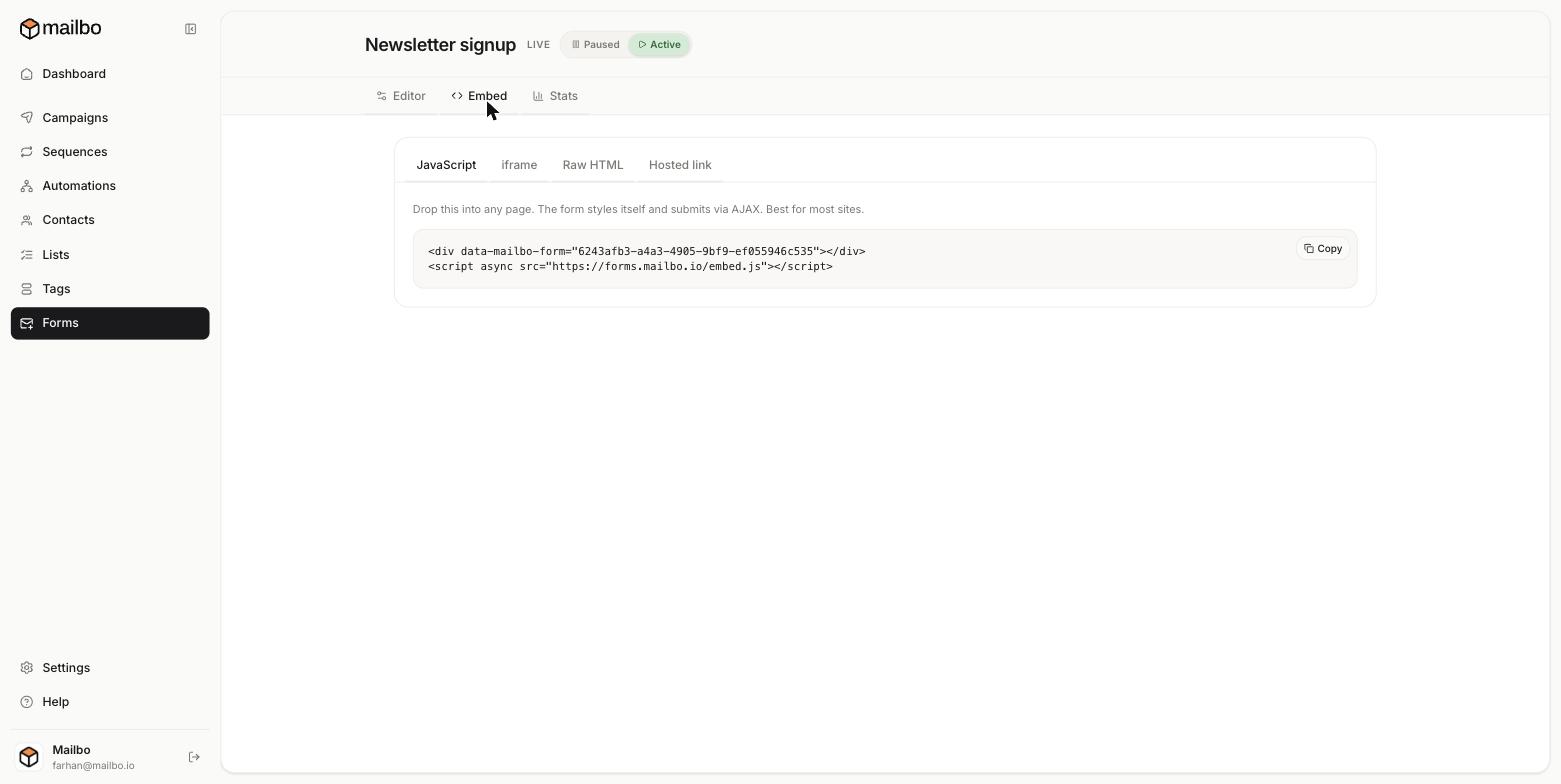
- Click the Embed tab at the top.
Step 2 — Pick an embed method and copy the code
The Embed tab offers four options — pick the one that fits your site:
- JavaScript (best for most sites) — drop the snippet into any page; the form styles itself and submits in the background (AJAX). It looks like:
<div data-mailbo-form="YOUR-FORM-ID"></div> <script async src="https://forms.mailbo.io/embed.js"></script> - iframe — embeds the form in a self-contained frame; handy when you can't run scripts.
- Raw HTML — the plain form markup, for full control over styling.
- Hosted link — a standalone Mailbo-hosted page, no website needed (great for a link in bio).
Click Copy on your chosen option.
Step 3 — Paste it into your site
Where you paste it depends on your website builder:
- WordPress — add a Custom HTML block to a page or widget and paste the code.
- Webflow / Framer / Squarespace — add an Embed / Code element and paste it in.
- Plain HTML site — paste it wherever you want the form to appear in your page's HTML.
Save/publish your page. The form appears and submissions flow straight into Mailbo.
Prefer a link instead?
If you don't want to embed code, every form also has a hosted link — a standalone Mailbo-hosted page you can share anywhere (in your bio, a button, an email). No website needed.
Make sure the form is Active
If submissions aren't coming through, check the Paused / Active toggle at the top of the form editor — a paused form won't accept signups.
Still have a question?
Can't find what you need in this guide? We're happy to help.
Last updated 6/15/2026← More in Signup Forms