
Invite a team member
Add a colleague to your workspace and choose what they can do.
You can invite other people into your Mailbo workspace to help manage contacts, write campaigns, and more. Each gets their own login.
Step 1 — Open the Team page
- Go to Settings → Team.
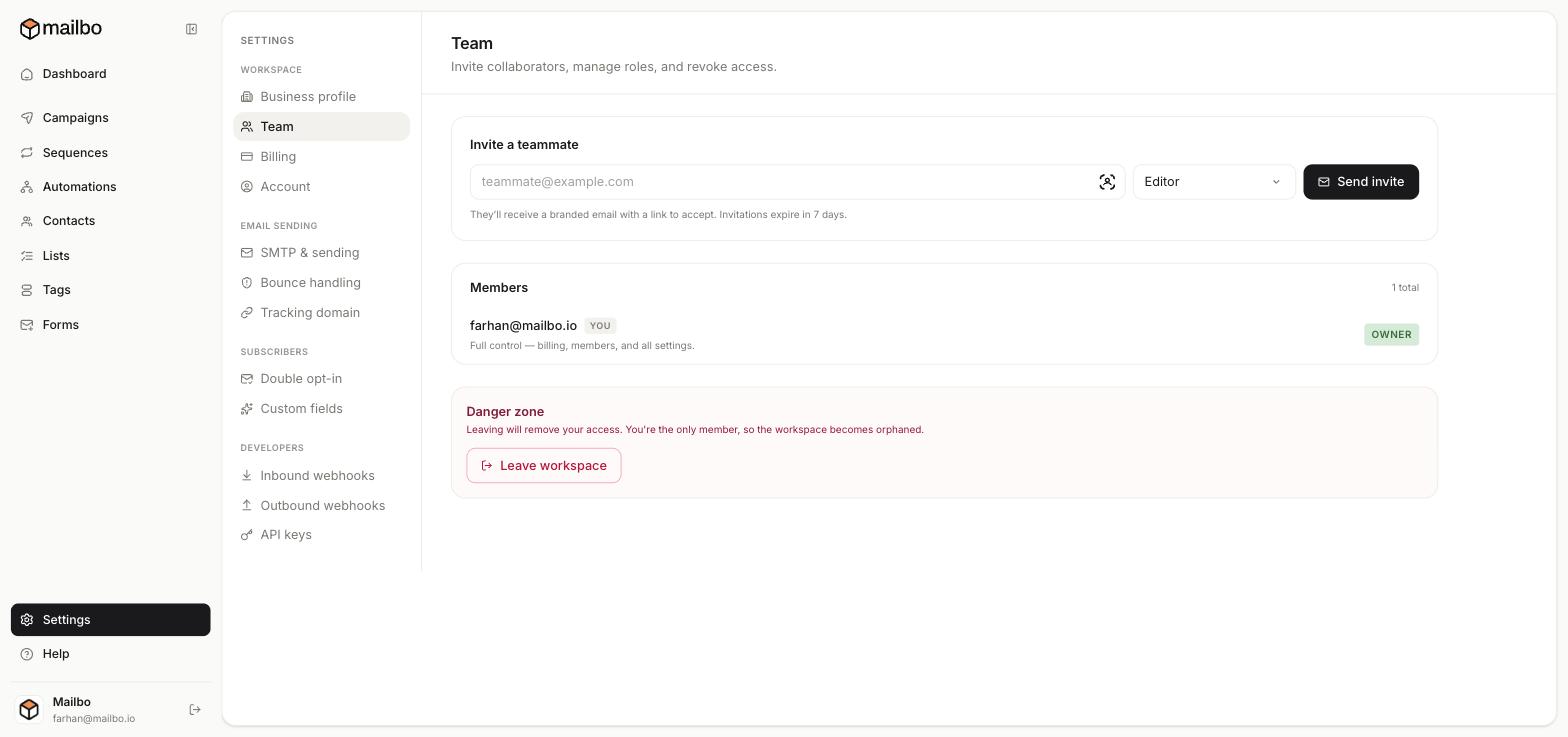
Step 2 — Send an invite
In the Invite a teammate box:
- Enter their email address.
- Choose a role (e.g. Editor) — this controls what they can do.
- Click Send invite.
They receive a branded email with a link to accept. Invitations expire in 7 days, so let them know to look for it.
Roles
- Owner — full control: billing, members, and all settings. (That's you, the account creator.)
- Editor — can work on contacts, campaigns, sequences and so on, without access to sensitive account-level controls.
Pick the least access someone needs to do their job.
Managing members
The Members list shows everyone in the workspace and their role. From here an owner can change roles or revoke access.
The danger zone
At the bottom is Leave workspace. If you're the only member, leaving orphans the workspace — so transfer ownership or invite someone first if needed.
Plan limits
The number of teammates you can have depends on your plan (Free is just you; paid plans add seats). See Plans & limits.